VSCode
Install
curl https://packages.microsoft.com/keys/microsoft.asc | gpg --dearmor > packages.microsoft.gpg
sudo install -o root -g root -m 644 packages.microsoft.gpg /etc/apt/keyrings/

sudo sh -c 'echo "deb [arch=amd64 signed-by=/etc/apt/keyrings/packages.microsoft.gpg] https://packages.microsoft.com/repos/code stable main" > /etc/apt/sources.list.d/vscode.list'
sudo apt install apt-transport-https
sudo apt update
sudo apt install code
Shortcut
Terminal
- open|close terminal ctrl+`
- create and open new terminal ctrl+shift +`
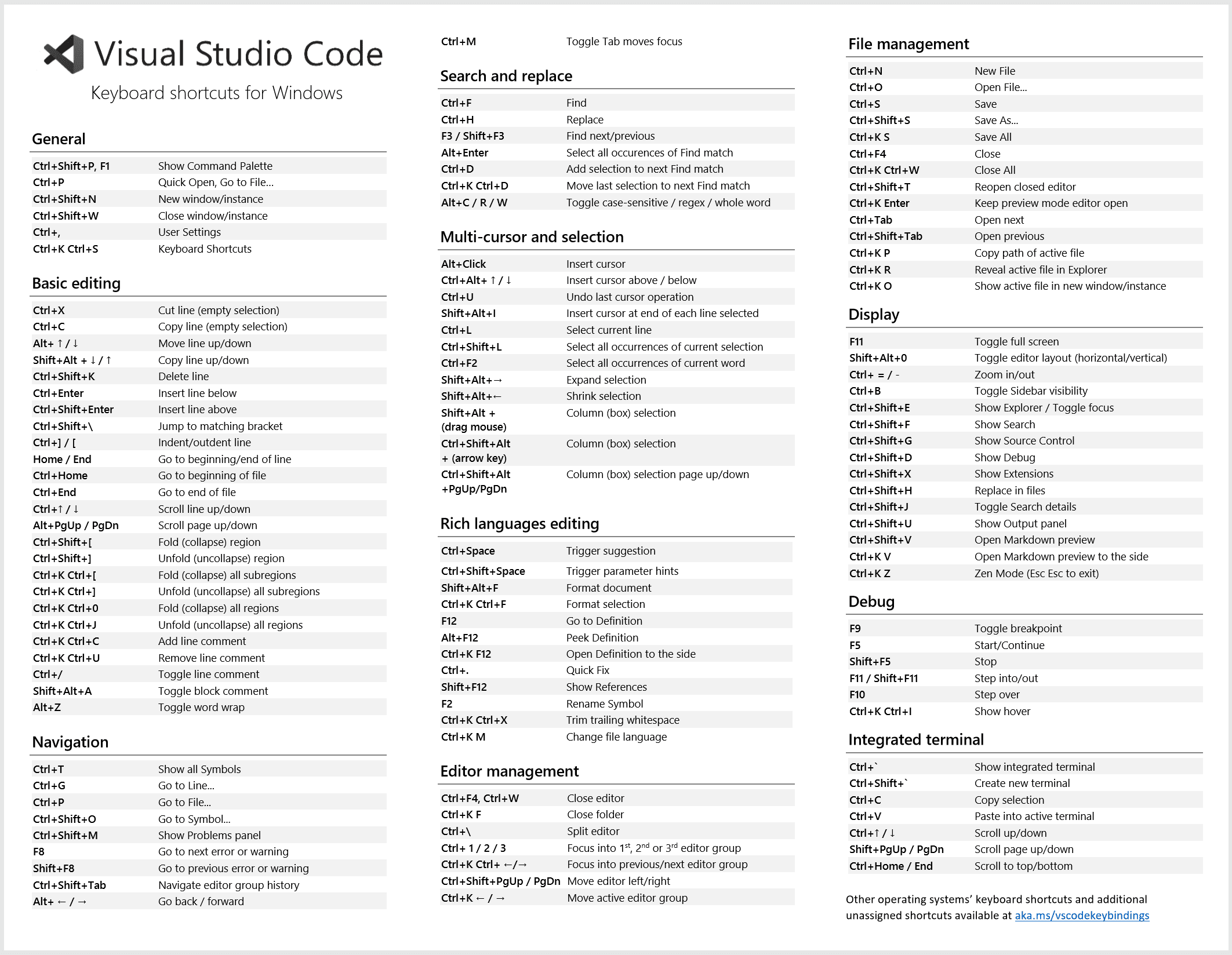
Editor
ctrl + shift + ⬅️/➡️expand to selectctrl + Dselect multiple same variables in current filectrl + alt/shift + ➖go back or forward from cursor history
variables-reference
Common
Predefined Variables
The following predefined variables are supported:
- ${userHome} - the path of the user's home folder
- ${workspaceFolder} - the path of the folder opened in VS Code
- ${workspaceFolderBasename} - the name of the folder opened in VS Code without any slashes (/)
- ${file} - the current opened file
- ${fileWorkspaceFolder} - the current opened file's workspace folder
- ${relativeFile} - the current opened file relative to
workspaceFolder - ${relativeFileDirname} - the current opened file's dirname relative to
workspaceFolder - ${fileBasename} - the current opened file's basename
- ${fileBasenameNoExtension} - the current opened file's basename with no file extension
- ${fileExtname} - the current opened file's extension
- ${fileDirname} - the current opened file's folder path
- ${fileDirnameBasename} - the current opened file's folder name
- ${cwd} - the task runner's current working directory upon the startup of VS Code
- ${lineNumber} - the current selected line number in the active file
- ${selectedText} - the current selected text in the active file
- ${execPath} - the path to the running VS Code executable
- ${defaultBuildTask} - the name of the default build task
- ${pathSeparator} - the character used by the operating system to separate components in file paths
- ${/} - shorthand for ${pathSeparator}
Predefined Variables Examples
Supposing that you have the following requirements:
- A file located at
/home/your-username/your-project/folder/file.extopened in your editor; - The directory
/home/your-username/your-projectopened as your root workspace.
So you will have the following values for each variable:
- ${userHome} -
/home/your-username - ${workspaceFolder} -
/home/your-username/your-project - ${workspaceFolderBasename} -
your-project - ${file} -
/home/your-username/your-project/folder/file.ext - ${fileWorkspaceFolder} -
/home/your-username/your-project - ${relativeFile} -
folder/file.ext - ${relativeFileDirname} -
folder - ${fileBasename} -
file.ext - ${fileBasenameNoExtension} -
file - ${fileDirname} -
/home/your-username/your-project/folder - ${fileExtname} -
.ext - ${lineNumber} - line number of the cursor
- ${selectedText} - text selected in your code editor
- ${execPath} - location of Code.exe
- ${pathSeparator} -
/on macOS or linux,\on Windows
Tip
Use IntelliSense inside string values for tasks.json and launch.json to get a full list of predefined variables.
Variables Scoped per Workspace Folder
By appending the root folder's name to a variable (separated by a colon), it is possible to reach into sibling root folders of a workspace. Without the root folder name, the variable is scoped to the same folder where it is used.
For example, in a multi root workspace with folders Server and Client, a ${workspaceFolder:Client} refers to the path of the Client root.
Environment Variables
You can also reference environment variables through the ${env:Name} syntax (for example, ${env:USERNAME}).
{
  "type": "node",
  "request": "launch",
  "name": "Launch Program",
  "program": "${workspaceFolder}/app.js",
  "cwd": "${workspaceFolder}",
  "args": ["${env:USERNAME}"]
}
Configuration Variables
You can reference VS Code settings ("configurations") through ${config:Name} syntax (for example, ${config:editor.fontSize}).