12 Linux Terminal Shortcuts Every Power Linux User Must Know
Must Know Linux Shortcuts
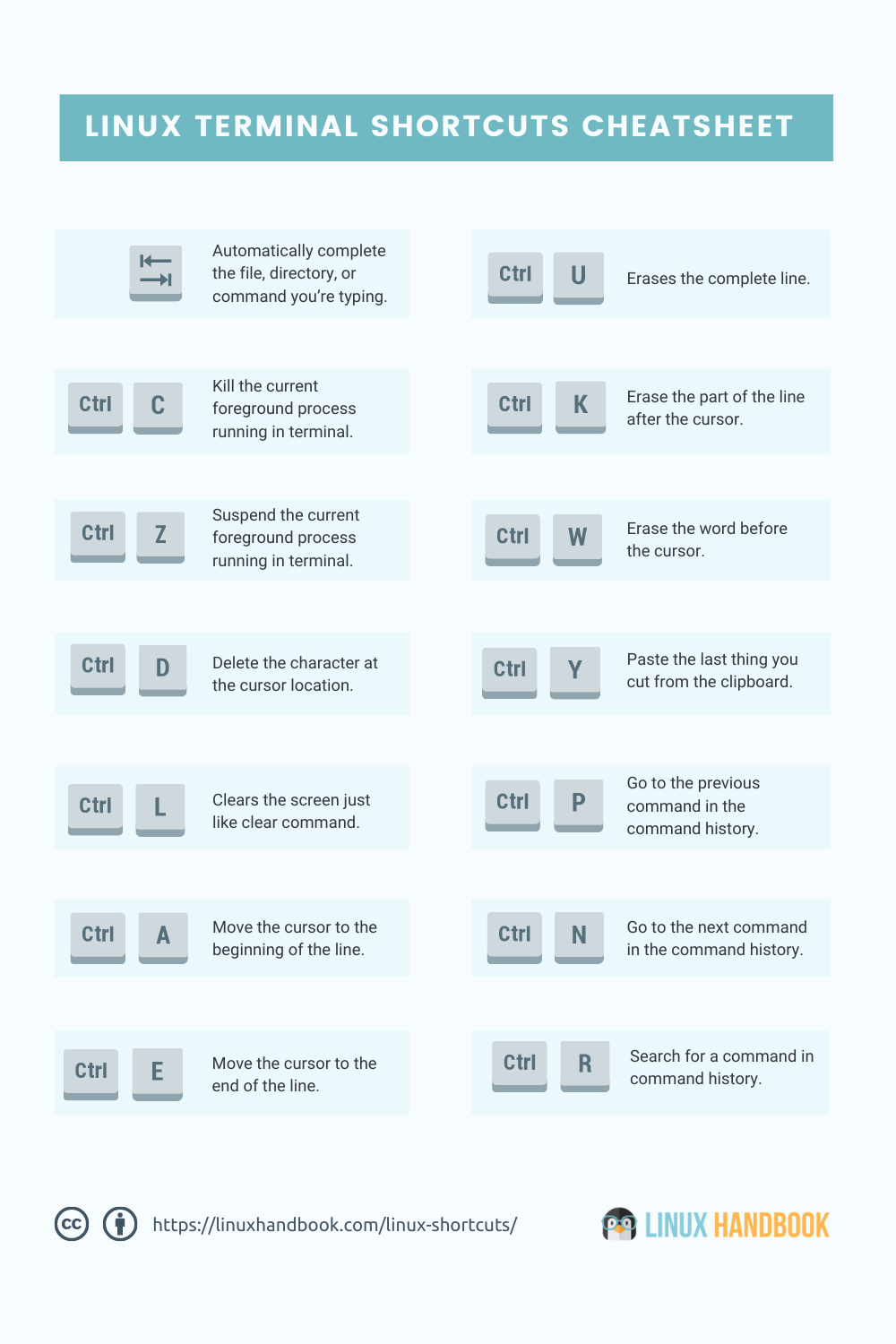
I would like to mention that some of these shortcuts may depend upon the Shell you are using. Bash is the most popular shell, so the list is focused on Bash. If you want, you may call it Bash shortcut list as well.
1. Tab
Just start typing a command, filename, directory name or even command options and hit the tab key. It will either automatically complete what you were typing or it will show all the possible results for you.
2. Ctrl + C
These are the keys you should press in order to break out of a command or process on a terminal. This will stop (terminate) a running program immediately.
3. Ctrl + Z
This shortcut will suspend a running program and gives you control of the shell. You can see the stopped program in background jobs and even resume to run it using the fg command.
4. Ctrl + D
This keyboard shortcut will log you out of the current terminal. If you are using an SSH connection, it will be closed. If you are using a terminal directly, the application will be closed immediately.
Consider it equivalent to the ‘exit’ command.
5. Ctrl + L
How do you clear your terminal screen? I guess using the clear command.
Instead of writing C-L-E-A-R, you can simply use Ctrl+L to clear the terminal. Handy, isn’t it?
6. Ctrl + A
This shortcut will move the cursor to the beginning of the line.
Suppose you typed a long command or path in the terminal and you want to go to the beginning of it, using the arrow key to move the cursor will take plenty of time. Do note that you cannot use the mouse to move the cursor to the beginning of the line.
This is where Ctrl+A saves the day.
7. Ctrl + E
This shortcut is sort of opposite to Ctrl+A. Ctrl+A sends the cursor to the beginning of the line whereas Ctrl+E moves the cursor to the end of the line.
[!NOTE] If you have the Home and End keys on your keyboard, you can also use them. Home is equivalent to Ctrl +A and End is equivalent to Ctrl + E.
8. Ctrl + U
Typed a wrong command? Instead of using the backspace to discard the current command, use Ctrl+U shortcut in the Linux terminal. This shortcut erases everything from the current cursor position to the beginning of the line.
[!WARNING ] Ubuntu Terminal would erase everything of one line
9. Ctrl + K
This one is similar to the Ctrl+U shortcut. The only difference is that instead of the beginning of the line, it erases everything from the current cursor position to the end of the line.
10. Ctrl + W
You just learned about erasing text till the beginning and the end of the line. But what if you just need to delete a single word? Use the Ctrl+W shortcut.
Using Ctrl+W shortcut, you can erase the word preceding to the cursor position. If the cursor is on a word itself, it will erase all letters from the cursor position to the beginning of the word.
The best way to use it to move the cursor to the next space after the targeted word and then use the Ctrl+W keyboard shortcut.
11. Ctrl + Y
This will paste the erased text that you saw with Ctrl + W, Ctrl + U and Ctrl + K shortcuts. Comes handy in case you erased wrong text or if you need to use the erased text someplace else.
Bonus Shortcut: Ctrl + R to search in Command History
You typed some command but cannot remember what it was exactly? Meet Ctrl + R.
This keyboard shortcut allows you to perform a search in your command history. Just press Ctrl+R and start typing. It will show the last command that matches the string you typed. Note that the typed string could be anywhere in the command. How cool is that?
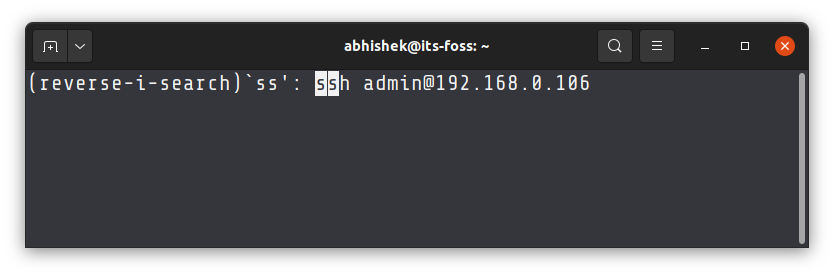
If you want to see more commands for the same string, just keep pressing Ctrl + R.
You can press enter to run the command selected or press Esc to come out of the search with the last search result.
Download FREE Terminal Shortcut Cheatsheet